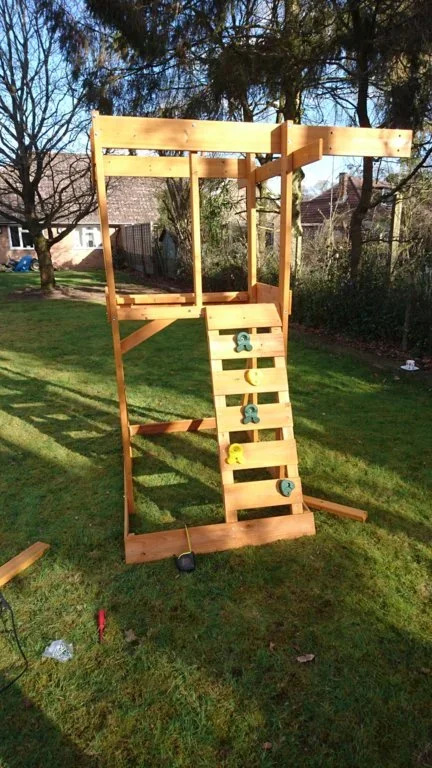
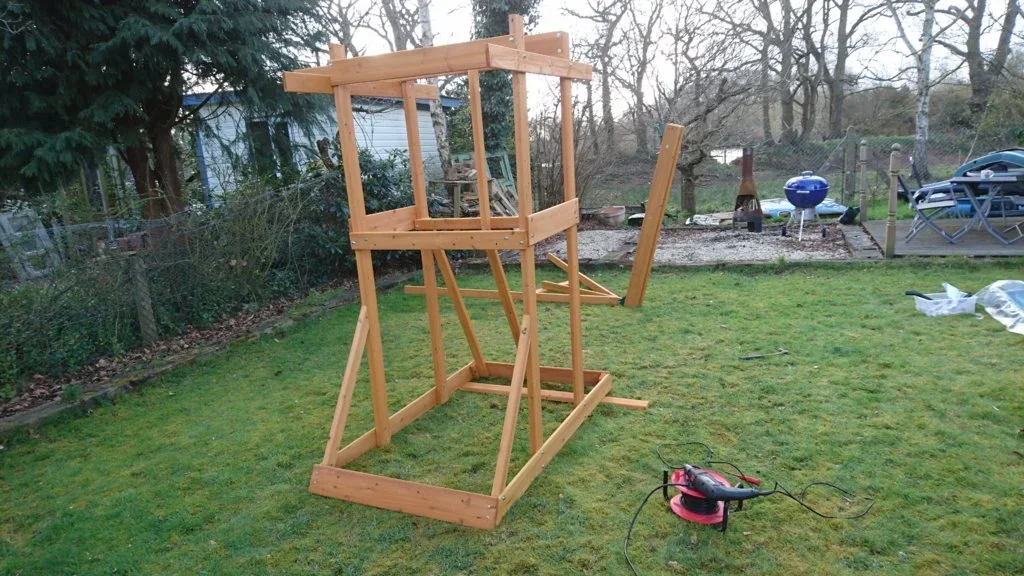
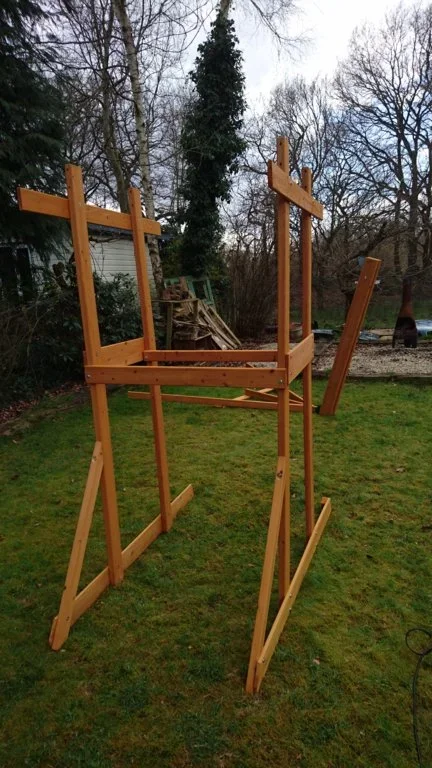
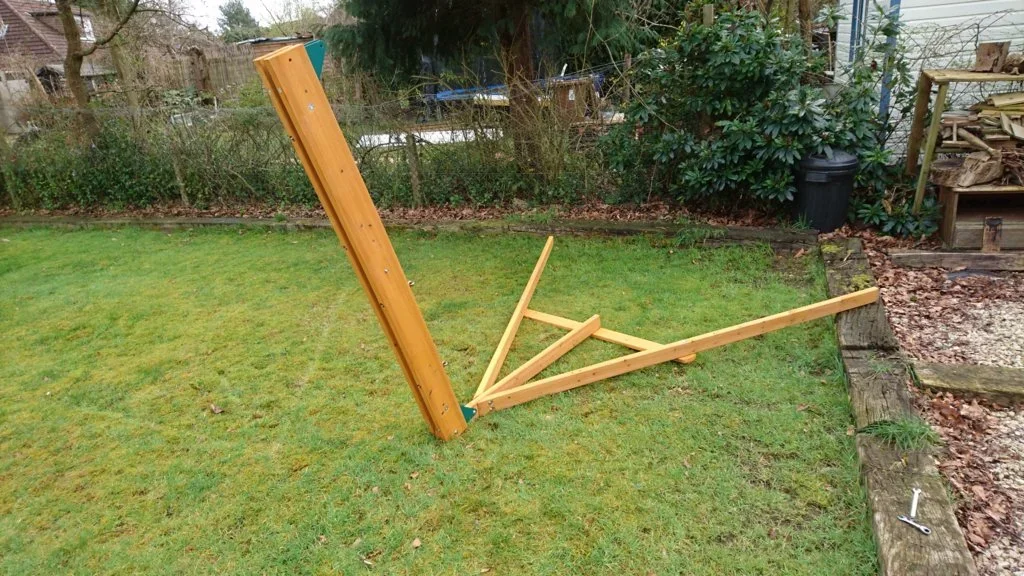
There's been a few times I've needed one of those mate. Good luck with the build anyhow.
Tony.
Tony.


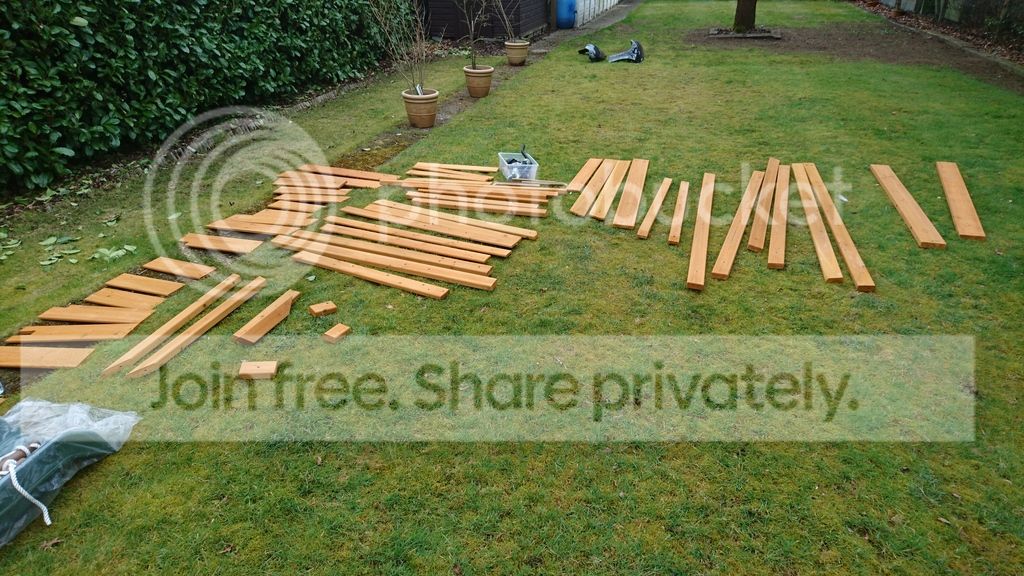
When I looked at all that wood I thought you were building a bonfire

It had to happen Garry, T**t!!
Tony.


I'm not even going to ask........................................................FrankieWell, I started this today, it doesn't look much different now to be honest!
Their claim of 'all pre-drilled' is either b*******s, or I cant read instructions!
I'm not so good at putting things together!

I've tried before but never managed to embed images like photobucket does?

View attachment 29556
Click the 'Full Image' button once pic is uploaded and it embeds.
What you on about, you just did on another thread about your deer hunting trip, just press full image for all photos, you are a teacher for Christ sake, what do you teach at school? Religious Education?....
For the record the ones that I thought might help someone with bonnet damage were from a few years ago when I had bonnet damage.
invested in a nice new impact wrench

I did that, but still came up as thumb nails
As my photobucket is full and despite deleting 6 pages worth tonight I couldn't upload a single picture, I'm struggling to upload images, the problem is I will have to delete some from how to guides and similar threads soon.
As you probably know,when you hit the "upload a file" button, pictures from your PC pop up in a new window. At the top of this window is the location of those pictures on your PC. If you move the cursor down to the "START" button usually in the lower left portion of your screen, you can search for the same location on your PC by right clicking the start button and selecting "Open Windows Explorer". If you navigate to the same location in the window that pops up, you can find the same photo. When you find it, you can right click on it and a window will open up. The top selection will be "Open" and the bottom or last selection will be "Properties". Right click on "Properties". A window will open up with 4 tabs (usually). The first should be "General". Under this tab, you can see how many bytes the picture takes up in computer space, such as "3.66" MB(megabytes). If you click on the "Details" tab, you will see how "dense" the picture is in terms of the numbers of pixels, as my 3.66 MB is 4644 pixels width x 5867 pixels height. I do this to see how large the picture is before I actually download it from the window that pops up when I've hit the "Upload a file" button. If I had selected it from this window, it would take forever to upload to the forum and might not even upload at all as an error message might appear. I think @GazHyde has said now that the picture will now automatically be downsized, not sure on this. I usually take the picture from the computer window that I told you about when checking its size and resize the image with a photo software, usually one that comes with your computer, to 600 x 400 pixels. When you hit the "Upload a file" button again, this picture should pop up again after the original one with the new size printed under it. If you select this smaller sized picture, it will upload very rapidly. After it is completely uploaded, the picture will appear as an icon with the words "thumbnail" and "full image" in separate boxes next to the icon. I believe you'll want the "full image" one. Forgive me if you already know some or all of this. FrankieI did that, but still came up as thumb nails
As my photobucket is full and despite deleting 6 pages worth tonight I couldn't upload a single picture, I'm struggling to upload images, the problem is I will have to delete some from how to guides and similar threads soon.